Importing and Exporting Your Data
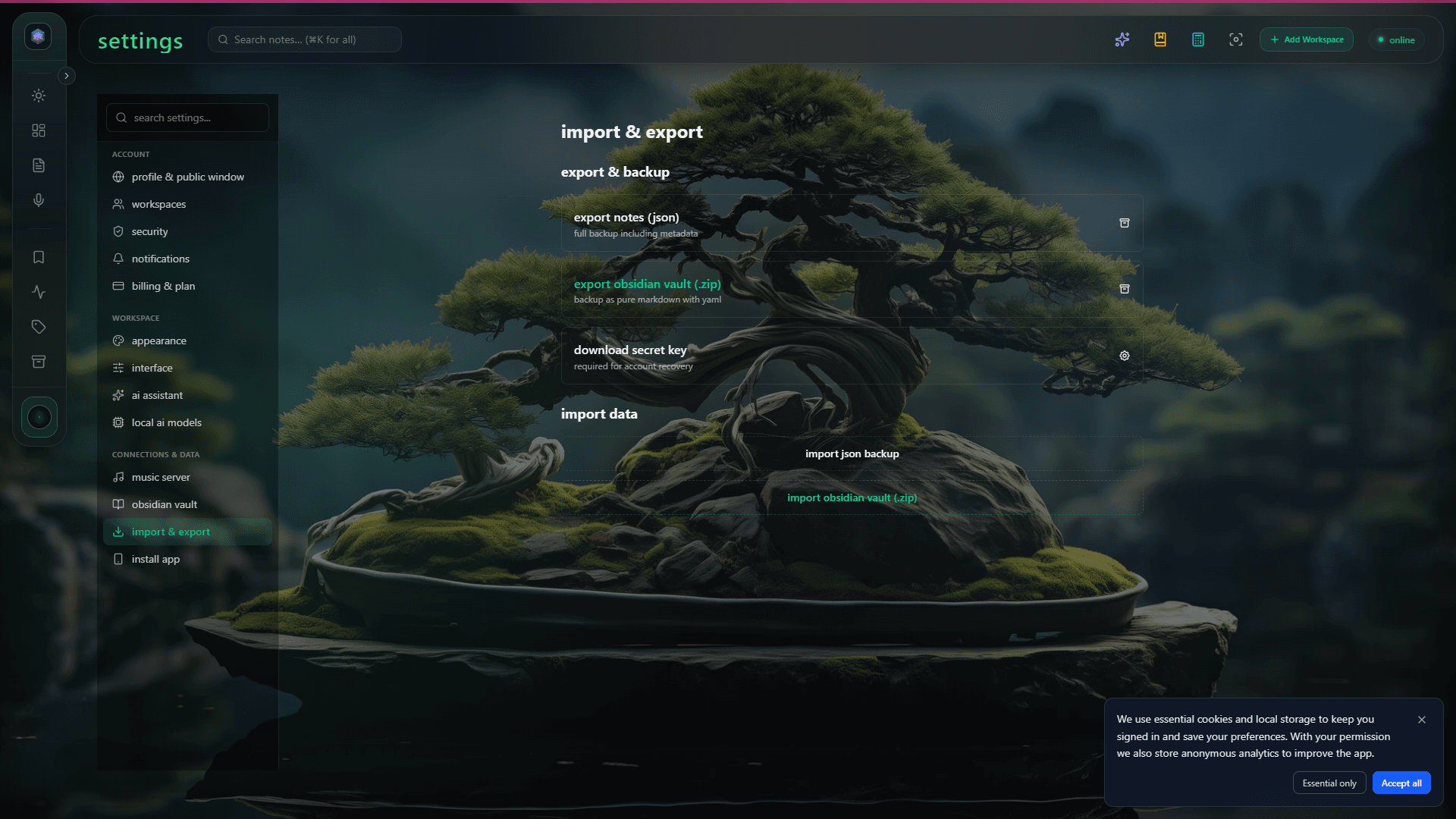
Move your data in and out of Glassy with Markdown export, JSON export, and import from Markdown files or an Obsidian vault — full portability, no lock-in.
Before you start
- getting-started/01-welcome-to-glassy
What you'll learn
- Export all notes as Markdown or JSON
- Import from Markdown files or an Obsidian vault
- Understand the export format and what is included
- Verify imports completed successfully
Glassy is designed to avoid vendor lock-in. Your data is yours — you can export everything at any time, in open formats that any text editor or note-taking app can read.
Exporting your data
Markdown export
Open Settings → Data
Open the Account HUD (click your avatar) → Settings → Data & privacy → Export data.
Choose Markdown export
Click Export as Markdown. Glassy generates a .zip file containing:
- One
.mdfile per note, named by title slug - YAML frontmatter with tags, creation date, and source URL (for captures)
- A
README.mdwith export metadata (date, item count, format version)
Download the archive
The export is generated on the server and downloaded to your browser. For large libraries, this may take a few seconds.
JSON export
The JSON export includes everything in a single file — notes, bookmarks, tags, and collections. Use it when you want a complete machine-readable snapshot, or when migrating to another Glassy instance.
{
  "exportedAt": "2026-07-13T12:00:00Z",
  "version": "1.0",
  "notes": [],
  "bookmarks": [],
  "tags": [],
  "collections": []
}
What is included
| Content type | Markdown export | JSON export |
|---|---|---|
| Notes | Yes (as .md files) | Yes |
| Captures | Yes (as .md with source URL) | Yes |
| Bookmarks | No (no content to export) | Yes |
| Tags | Yes (in frontmatter) | Yes (as separate array) |
| Collections | No | Yes |
| Images | No (URLs only) | No (URLs only) |
Importing data
From Markdown files
Open Settings → Data
Go to Settings → Data & privacy → Import data.
Select Markdown import
Click Import Markdown and select one or more .md files.
Review and confirm
Glassy parses each file:
- YAML frontmatter — extracts tags, date, title (if present)
- No frontmatter — uses filename as title, no tags
- Body — imported as note content
Review the import summary (number of notes, any warnings) and click Confirm import.
From an Obsidian vault
Glassy can import directly from an Obsidian vault — useful if you’re migrating from Obsidian to Glassy or bringing in a batch of notes:
- Settings → Data & privacy → Import from Obsidian
- Select the vault directory (or drag and drop)
- Glassy scans for
.mdfiles with YAML frontmatter - Frontmatter fields like
tags,date, andtitleare preserved
Verifying imports
After importing:
- Check your library — imported notes should appear
- Verify tags were preserved
- Check the import log in Settings → Data for any warnings or skipped files
- If some notes are missing, check that the source files are valid Markdown with correct frontmatter
What’s next?
You’ve completed the Getting Started track. From here, explore:
- Glassy Capture — master every capture mode and the offline queue
- Local AI — understand on-device AI, cloud routing, and BYOK
- Self-Hosting — run Glassy on your own server