Search and the Knowledge Base
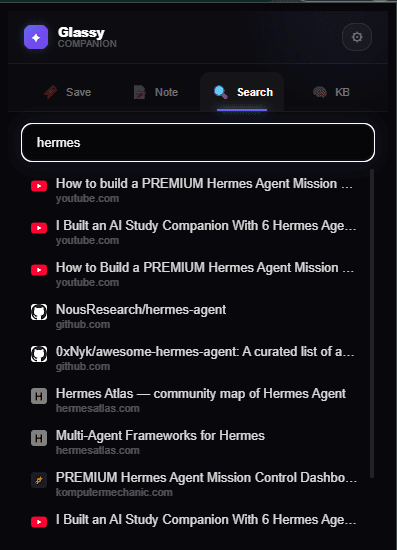
Find anything in your Glassy library with full-text search, search operators, and the Knowledge Base — a semantic, AI-indexed view of everything you've saved.
Before you start
- getting-started/03-navigating-the-workspace
What you'll learn
- Use full-text search across notes, bookmarks, captures, and documents
- Apply search operators (tag:, type:, collection:) to narrow results
- Understand the Knowledge Base workspace
- Recognize when semantic search is working on-device vs. cloud
Your library is only as useful as your ability to retrieve what’s in it. Glassy gives you two complementary search systems: full-text search for keywords and phrases, and the Knowledge Base for semantic, meaning-based discovery.
Full-text search
Press Ctrl +K (or Cmd +K on Mac) anywhere in Glassy to open the global search overlay. Type any word or phrase and press Enter .
Glassy searches across:
- Note titles and content — full-text match
- Bookmark titles and URLs — title and URL match
- Capture content — extracted text from captured pages
- Documents — document titles and content
- Tags — tag name match
Results are ranked by relevance, with recent items weighted higher.
Search operators
Narrow your search with operators:
| Operator | Example | Effect |
|---|---|---|
tag: | tag:meetings | Only items with the “meetings” tag |
type: | type:note | Only notes (note, bookmark, capture) |
collection: | collection:research | Items in the “research” collection |
-tag: | -tag:archived | Exclude items with the “archived” tag |
Operators combine freely:
tag:work type:note -tag:archivedThis finds notes tagged “work” that are not tagged “archived”.
The Knowledge Base workspace
The Knowledge Base (in the sidebar under Organize, when enabled) is a dedicated view of everything you’ve saved — notes, bookmarks, captures, documents, and even Obsidian vault files if connected. It’s powered by a hybrid search system that combines:
- BM25 full-text search — keyword matching, fast and precise
- Vector semantic search — meaning-based matching, finds conceptually related content even without keyword overlap
- Reciprocal Rank Fusion (RRF) — merges both result sets, ranked and deduplicated
How content gets indexed
When you save a bookmark, create a note, or sync a vault file, the corpus indexer automatically:
- Generates a vector embedding (a mathematical representation of the content’s meaning)
- Stores it in the
content_embeddingstable - Adds the text to an FTS5 full-text index for keyword search
This happens automatically — you don’t need to manually index anything.
Using the Knowledge Base
Open the Knowledge Base workspace to:
- Search across everything — type a query and get hybrid results
- Browse by source type — filter to notes, bookmarks, documents, or vault files
- Discover connections — find content you forgot you had
On-device vs. cloud search
When you open a note, the Related Notes panel shows semantically similar notes. If you see an “On Device” badge, the similarity was computed entirely in your browser using local embeddings — no data was sent to any server.
What’s next?
Learn about importing and exporting your data to move content in and out of Glassy — Markdown export, JSON export, and Obsidian import.