Navigating the Workspace
Learn the real Glassy sidebar, the global search overlay, keyboard shortcuts, and the Account HUD — so you can find anything without hunting.
Before you start
- getting-started/01-welcome-to-glassy
What you'll learn
- Identify every section of the Glassy sidebar
- Use the global search overlay to find any note, bookmark, or capture
- Navigate and create notes with keyboard shortcuts
- Open the Account HUD and access settings
Glassy is a full web app — not a browser toolbar popup. This lesson maps every area of the workspace so the rest of the tracks make sense.
The sidebar
The left sidebar is your primary navigation. It’s organized into two groups: Views and Organize.
Views
| Item | What it is |
|---|---|
| Today | Your daily landing page — quick capture, recent notes, checklist rollups |
| Notes | Your complete note library. Searchable, filterable, sortable. Shows an active-note count badge. |
| Documents | Longer-form documents and imported files |
| Recording | Voice Studio — record audio with on-device transcription (Pro/Clear) |
Organize
| Item | What it is |
|---|---|
| Keep | GlassyKeep — your bookmarking and web-clipping workspace with collections (Pro/Clear) |
| Knowledge Base | The searchable, AI-indexed view of everything you’ve saved — notes, bookmarks, documents, vault files |
| Agent Gateway | Connect external AI agents and assistants like Claude, Cursor, Windsurf, OpenCode, Hermes, Openclaw, and Pi (self-hosted only) |
| Following | Collaboration feed — shared notes and activity from accounts you follow |
| Tags | All your tags with note counts. Click any tag to filter your notes. |
Some items only appear if you have access or the feature is enabled. For example, Knowledge Base and Agent Gateway require their feature flags to be on, and Keep requires a Pro or Clear plan.
Collapsing the sidebar
Click the chevron at the top of the sidebar to collapse it to icon-only mode. This saves horizontal space. Hover or click an icon to see its label, or click the chevron again to expand.
The global search overlay
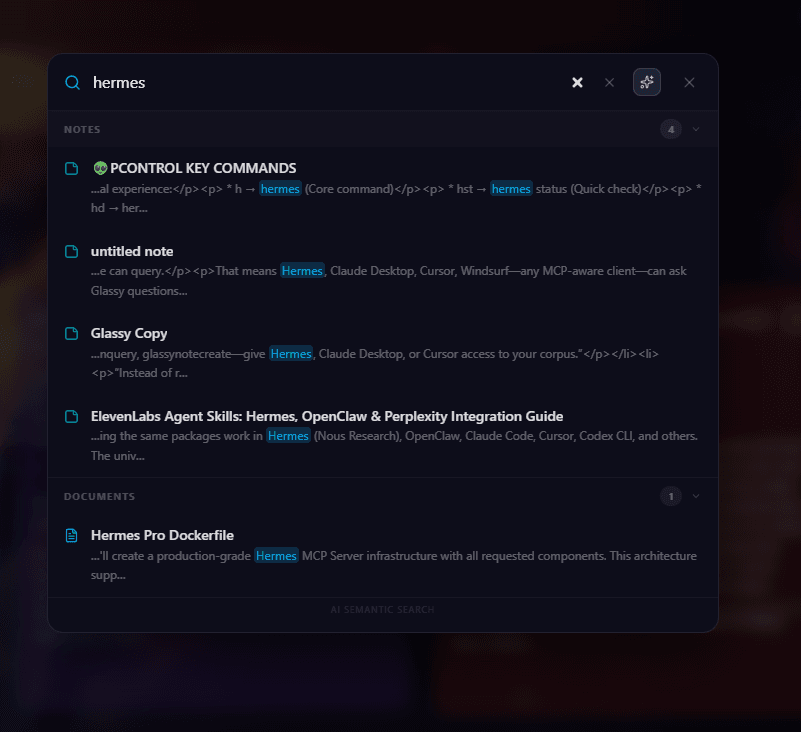
Press Ctrl +K (or Cmd +K on Mac) anywhere in Glassy to open the search overlay. This is the fastest way to find anything:
- Notes — title and content match
- Bookmarks — title and URL match
- Captures — extracted page content
- Documents — document titles and content
- Tags — tag names
Type your query and press Enter . Results are ranked by relevance, with recent items weighted higher. Click any result to open it.
Keyboard shortcuts
| Shortcut | Action |
|---|---|
| Ctrl +K / Cmd +K | Open global search |
| N | Create a new note |
| T | Add or edit tags on the focused note |
Most editor-specific shortcuts (bold, italic, slash commands) are covered in Your First Note.
The Account HUD
Click your avatar or username in the top-right corner to slide up the Account HUD. It gives you fast access to:
- Settings — appearance, AI, API keys, connections, data export
- Admin — user management (admin accounts only)
- Health — server, database, and API status
- Alerts — announcements
- Help — the in-app help center
- Public Window — your personal public page
- Switch Account — jump to another account without re-logging in
- Storage usage and subscription status at a glance
Settings at a glance
Open Settings from the Account HUD. The pages you’ll visit most often:
- Appearance — theme and display density
- AI — local model status, cloud AI, BYOK API keys
- Connections & data — MCP server, Obsidian vault, webhooks, API keys, data export
- Account — plan, billing, password, 2FA, secret key
What’s next?
Now that you can navigate, learn to organize your notes with tags — the system that makes everything findable as your library grows.