Your First Note
Create a note in Glassy, write with Markdown and slash commands, embed images, and let auto-save handle the rest.
Before you start
- getting-started/01-welcome-to-glassy
What you'll learn
- Create a new note using the sidebar button or keyboard shortcut
- Write with Markdown formatting
- Use slash commands to insert headings, lists, callouts, and checklists
- Embed images and attach files
- Understand how auto-save works
Notes are the core content type in Glassy. They support full Markdown editing, slash commands, tags, image attachments, and AI features. This lesson gets you writing in under two minutes.
Creating a note
There are three ways to start a new note:
Keyboard shortcut
Press N anywhere in the app. A new note opens immediately in the editor.
Sidebar button
Click the + button in the left sidebar. This opens a fresh note.
Quick Capture bar
On the Today view, type into the Quick Capture bar at the top and press Enter . This creates a note instantly.
Writing with Markdown
Glassy’s editor supports standard Markdown. As you type, formatting renders live:
| You type | You get |
|---|---|
**bold** | bold |
*italic* | italic |
`code` | code |
## Heading | A level-2 heading |
- item | A bullet list item |
1. item | A numbered list item |
> quote | A blockquote |
[link](url) | A clickable link |
You can also use keyboard shortcuts: Cmd +B for bold, Cmd +I for italic, and so on.
Slash commands
Type / anywhere in a note to open the slash command menu. This is the fastest way to insert structured content:
| Command | What it inserts |
|---|---|
/h2 | A level-2 heading |
/h3 | A level-3 heading |
/bullet | A bulleted list |
/todo | A checklist item (with a checkbox) |
/info | An info callout box |
/quote | A blockquote |
Start typing after the slash to filter the list. Press Enter to insert the selected block, or Esc to dismiss.
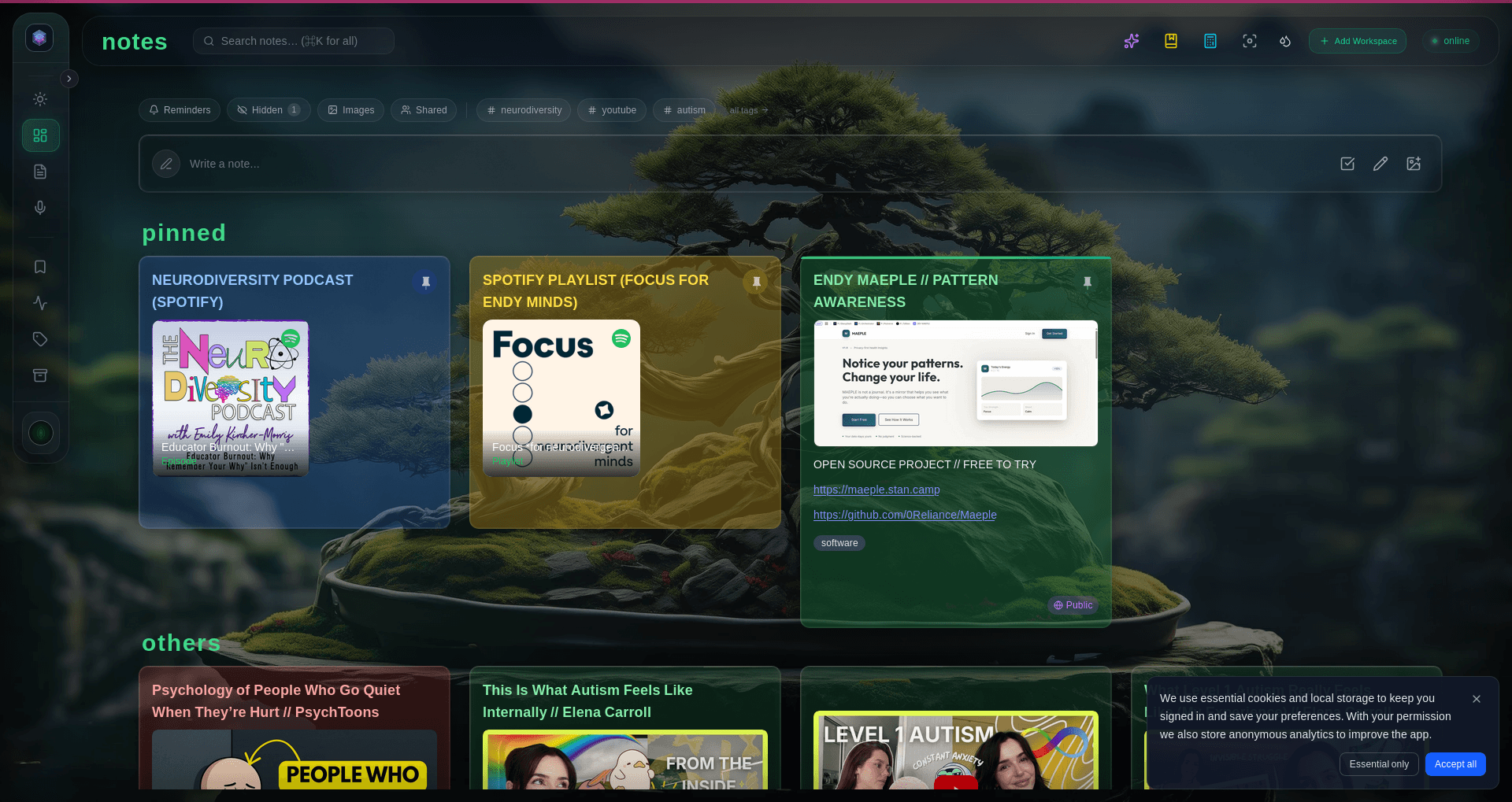
Embedding images
There are two ways to add an image to a note:
- Paste — copy an image to your clipboard, then paste it into the editor with Cmd +V . The image uploads to your Glassy instance and embeds inline.
- Drag and drop — drag an image file from your file manager directly into the note.
Images are stored on your Glassy server and count toward your storage quota. Captured screenshots from the Companion extension also embed this way automatically.
Auto-save and sync
You never need to press save. As you type, Glassy saves your note automatically and syncs changes across all your open Glassy windows in real time. If you open the same note in two browser tabs, edits in one appear in the other within seconds.
Adding tags
Tags help you find notes later. While editing a note, click the tag area in the note header (or press T ) to add tags. Type a tag name and press Enter to add it. Existing tags appear as autocomplete suggestions — reuse them to keep your taxonomy consistent.
We’ll cover tags and organization in depth in Organizing with Tags.
What’s next?
Now that you can write notes, learn to navigate the full workspace — the sidebar, search overlay, and keyboard shortcuts that make everything faster.