Welcome to Glassy
Create your Glassy account, sign in, and get oriented with the Today view and Account HUD — your home base for everything.
What you'll learn
- Create a Glassy account at app.glassy.fyi
- Sign in and arrive at the Today view
- Understand the Account HUD and where to find settings
- Know the difference between cloud and self-hosted Glassy
Welcome to Glassy — a workspace for minds that think differently. This lesson gets you signed in and oriented in under five minutes. Everything else builds on what we cover here.
What Glassy is
Glassy is a single workspace for your notes, captured web content, voice recordings, documents, and semantic search. Think of it as your personal knowledge base that gets smarter the more you put into it.
The core ideas:
- Notes — write in Markdown with slash commands and auto-save
- Capture — save bookmarks, full-page articles, screenshots, and text highlights from any browser via the Glassy Capture extension
- AI — ask questions about everything you’ve saved, with answers grounded in your actual content
- Search — full-text and semantic search across your entire library
Step 1: Create your account
Go to Glassy
Open app.glassy.fyi/register in your browser. Glassy works on recent Chrome, Edge, Brave, and Firefox.
Fill in the form
Enter a username, your email address, and a password (minimum 8 characters). Click Create Account.
Verify your email
You’ll receive a confirmation email — click the link inside to verify your account. If your admin has configured Google sign-in, you can use that instead.
Sign in
After verifying, sign in with your email and password. You’ll land on your Today view.
The Today view
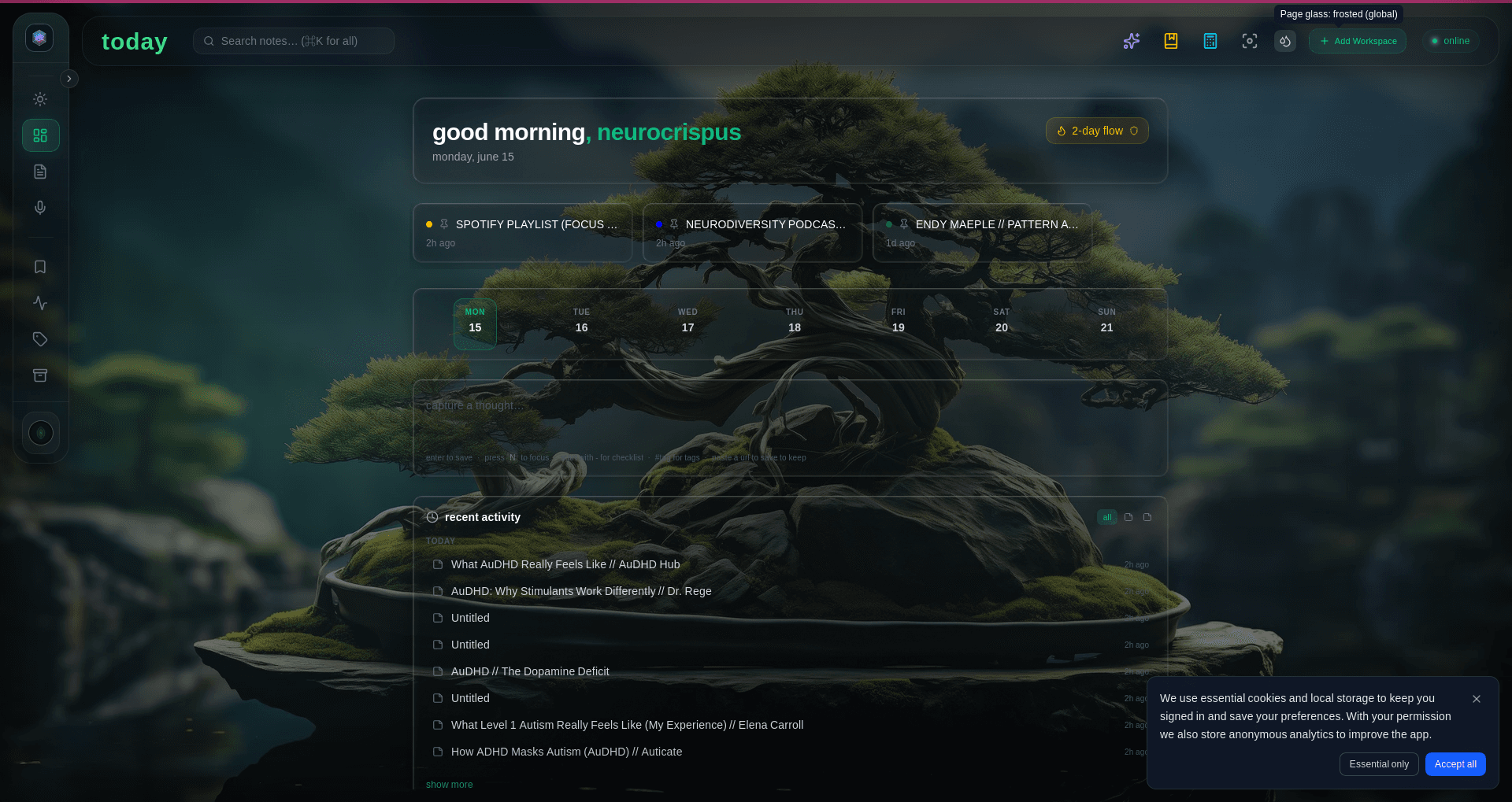
When you sign in, you arrive at Today — your daily landing page. This is where you’ll see:
- Quick Capture — a bar at the top for instantly jotting down a note or pasting a link
- Recent notes — what you’ve been working on lately
- Checklist rollups — any to-do items from your notes, surfaced in one place
- Daily note widget — if you connect an Obsidian vault, today’s daily note appears here
The Today view is designed to be a calm starting point. You don’t have to organize anything here — just capture and let Glassy handle the rest.
The Account HUD
The Account HUD is a glassmorphic panel that slides up from the bottom of the screen. Click your avatar or username in the top-right corner to open it. On mobile, tap your avatar or swipe up.
The HUD contains quick-access cards:
| Card | What it does |
|---|---|
| ⚙️ Settings | Appearance, AI, API keys, connections, data |
| 🛡️ Admin | User management (admin accounts only) |
| 💓 Health | Real-time server, database, and API status |
| 🔔 Alerts | Announcements and system notifications |
| ❓ Help | Opens the in-app help center |
| 🌍 Public Window | Your personal public-facing page |
The HUD also shows your storage usage and subscription status at a glance.
Multi-account switching
If you have more than one Glassy account (for example, a personal account and a work account), the HUD lets you switch between them without visiting the login page. Scroll down to Switch Account and pick the one you want. Each account opens in the same browser session — no re-authentication needed.
What’s next?
Now that you’re signed in and oriented, the next lesson covers creating your first note — the Markdown editor, slash commands, and auto-save.