Cloud AI and Smart Routing
How Glassy Cloud routes AI queries to cloud providers when local models can't handle the job — and what that means for your privacy and costs.
Before you start
- local-ai/03-asking-ai-about-your-library
What you'll learn
- Understand when Glassy Cloud routes to a cloud provider vs. local model
- Know what data leaves your device during a cloud call
- Understand per-tier AI cost caps
- Opt out of cloud fallback if privacy requires it
Glassy Cloud’s smart routing runs your AI queries locally whenever it can — fast, private, no API costs. But some queries need more: a larger context window, a more capable model, or a task type the local model isn’t good at. When that happens, Glassy automatically routes to a cloud provider.
How smart routing decides
When you submit an AI query, Glassy evaluates two signals:
| Signal | Description |
|---|---|
| Context length | How many notes were retrieved. If the combined text exceeds the local model’s context window, a cloud model with a larger window is needed. |
| Task complexity | Some tasks — multi-document synthesis, code generation, long-form drafting — are tagged as cloud-preferred because smaller local models underperform. |
If either signal triggers the threshold, and cloud fallback is enabled, the query routes to the configured cloud provider.
What happens to your data on a cloud call
- Semantic search runs locally — your library is searched on your server, never uploaded wholesale
- Retrieved notes are sent to the cloud provider — only the notes that matched your query (typically 3-10), not your whole library
- Your query text is sent — the question you asked is part of the API call
- The response comes back — displayed in Glassy and logged to your query history
Your full library, account details, and other notes are never sent.
How cloud AI is funded
Glassy Cloud AI is funded by pre-purchased AI packs or by your own provider key (BYOK). No plan includes an AI allowance — packs never expire and stack, and local AI is always free.
| Tier | Cloud AI |
|---|---|
| Free | Buy an AI pack, or add your own key |
| Pro | AI packs or BYOK — no included credits |
| Clear | AI packs or BYOK — no included credits |
To use your own provider quota instead of packs, add a key in Settings → API Keys (next lesson).
Configuring cloud fallback
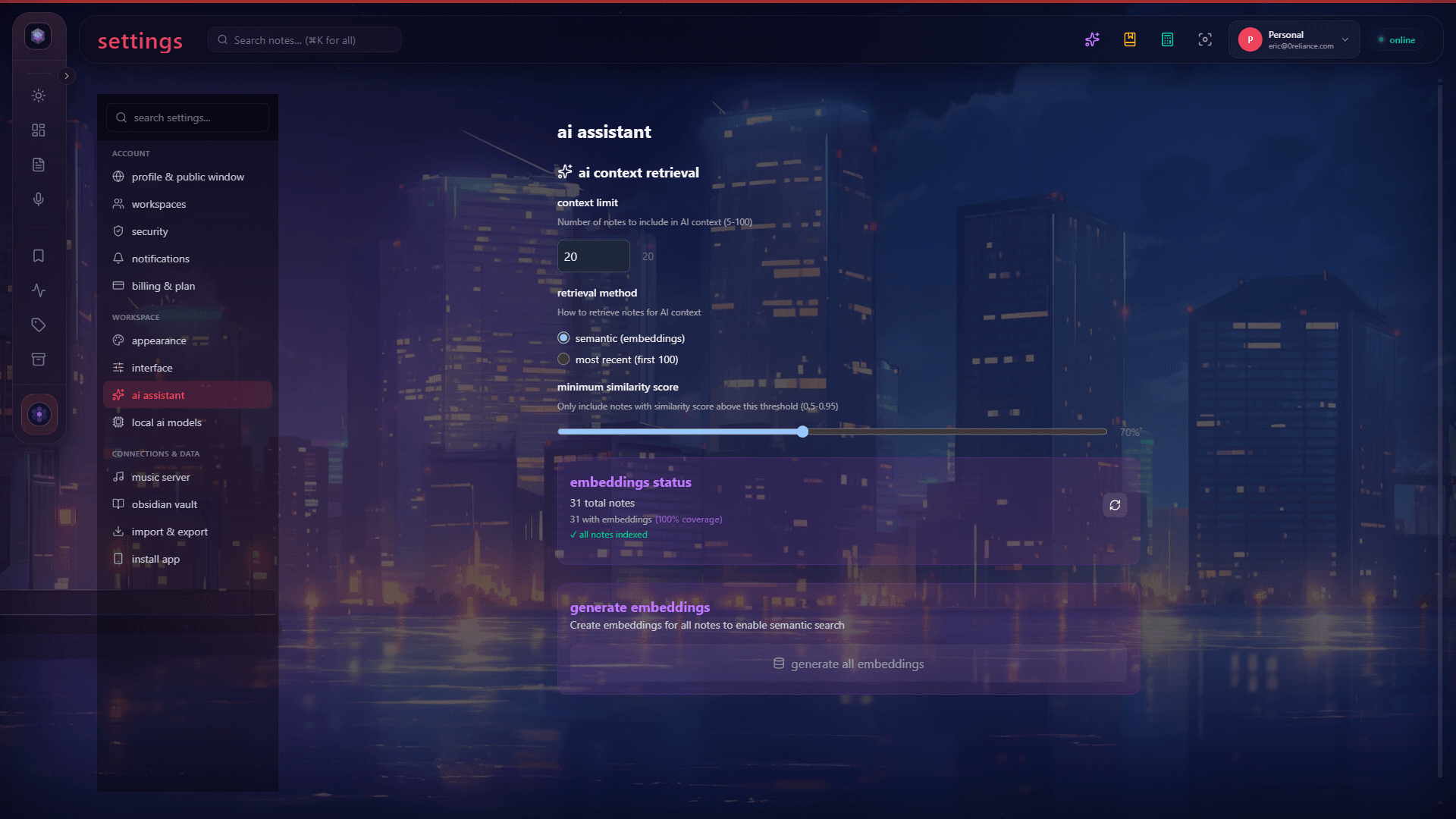
Open Settings → AI
Open the Account HUD → Settings → AI.
Toggle cloud fallback
Enable or disable Allow cloud fallback. When disabled, all queries run locally. Complex queries that exceed the local model’s capacity return an error rather than routing out.
Check your provider (if applicable)
If you’ve added your own keys via BYOK, the cloud provider is determined by which key you’ve configured. Otherwise, Glassy Cloud uses its managed provider keys.
Opting out completely
If your use case requires that no data ever leave your device:
- Settings → AI → Allow cloud fallback → toggle off
- Use a local model with a larger context window to reduce cases where routing would trigger
- For very large queries, Glassy tells you the context exceeded the local model and offers to truncate rather than route out
What’s next?
To spend your own provider quota instead of credits, or to use a model your pack does not cover, set up BYOK (Bring Your Own Key).