Capturing from the Web
Save bookmarks, full-page captures, and text highlights into Glassy using the Companion extension's Unified Save Card and Smart capture presets.
Before you start
- getting-started/05-installing-glassy-companion
What you'll learn
- Save a full-page capture with one keystroke
- Capture a highlighted text selection with source attribution
- Save a lightweight bookmark
- Use the Unified Save Card and Smart capture presets
- Understand how captures appear in your library
The Glassy Capture extension turns your browser into a capture tool. This lesson covers the three core capture modes: full-page captures, text highlights, and bookmarks.
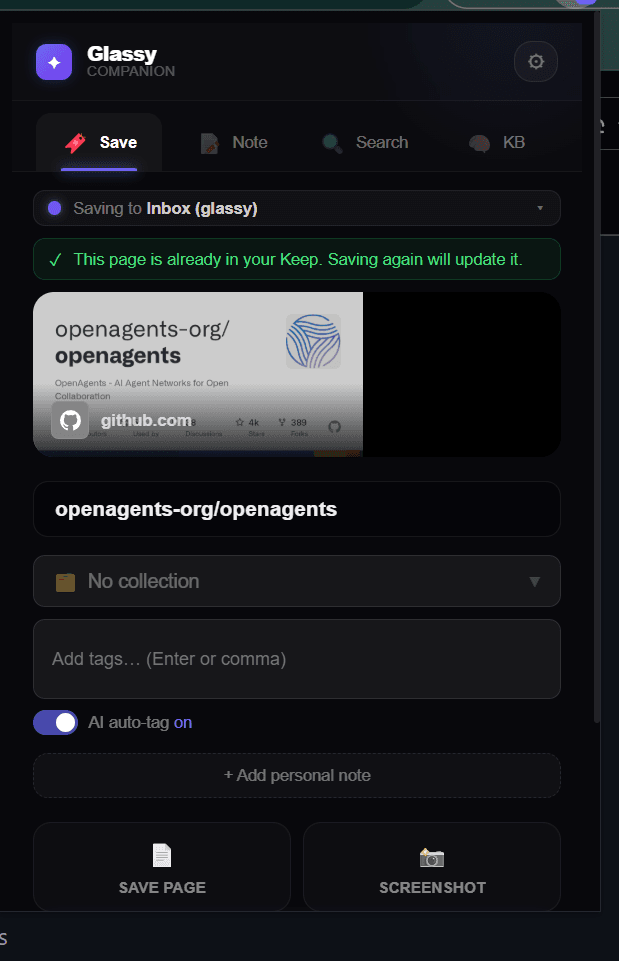
The Unified Save Card
When you trigger a capture, the Companion popup shows a Unified Save Card — a single form with progressive disclosure:
- Always visible: title, collection, tags, note, and the Save button
- Expandable: tap Smart capture to reveal content type presets, visibility toggles, and a content preview inline
You never leave the card to adjust settings. Essentials are always one tap away; advanced options expand inline on demand.
Saving a full-page capture
A full-page capture saves the article content, cleaned and formatted as Markdown via Mozilla Readability.
Trigger Quick Save
Press your Quick Save shortcut (e.g., Ctrl +Shift +G ) on any page, or click the extension icon and choose Capture page.
Review in the Unified Save Card
The popup opens with the page title, URL, and extracted content. Add a note, select tags, or choose a collection if you want.
Save
Click Save. The capture lands in your Glassy library as a note with the full article content, source URL, and AI-suggested tags.
Capturing a text highlight
Highlight capture saves a specific passage with its source URL — perfect for quotes and key arguments.
Select text
Click and drag to highlight any passage on the page.
Right-click and save
Right-click the selection and choose Save to Glassy. The popup opens with the quote ready to save.
Add your reaction
In the capture card, click Add note and type your reaction or summary. Press Enter to save.
The captured quote includes the source URL automatically, so you always know where it came from.
Saving a bookmark
Bookmarks are lightweight URL saves — they store the URL, title, and tags but not the page content. They don’t count toward your storage quota.
Open the popup
Click the Glassy icon or press your popup shortcut.
Choose Bookmark preset
Tap Smart capture and select the Bookmark preset. This tells Glassy to save only the URL and metadata.
Save
Add tags if you want, then click Save. The bookmark appears in your GlassyKeep library.
Where captures appear
All captures land in your Glassy library as notes. They’re immediately:
- Searchable — full-text and semantic search
- Tagged — AI suggests tags automatically; you can edit them
- Organizable — add to collections in GlassyKeep
- AI-ready — indexed for the Knowledge Base and AI queries
Open the Notes view or the Keep workspace to see your captures, newest first.
Capturing offline
If your Glassy server is unreachable when you capture, the extension queues the capture locally and syncs it automatically when you reconnect. You never lose a capture to a bad connection. We cover this in detail in the Companion track.
What’s next?
Beyond text captures, Glassy Capture can capture visual content — viewport screenshots, regions, and individual page elements. Learn how in Screenshots & Element Picker.