Multi-Account Capture
Route captures to different Glassy accounts from the same browser extension using the account picker — personal and work accounts side by side.
Before you start
- companion/01-installing-and-configuring-companion
What you'll learn
- Understand why you might capture to multiple accounts
- Use the account picker to select a target account
- Know how "Saved to {account}" toasts confirm routing
- Handle account-scoped caches (collections and tags)
- Troubleshoot 409 duplicate messages that mention the selected account
If you have more than one Glassy account — for example, a personal account and a work account — you don’t need to sign out and back in to capture to each one. The account picker lets you route each capture to the account you choose.
Why multi-account capture
Common scenarios:
- Personal vs. work — keep personal reading separate from work research
- Multiple projects — different Glassy accounts for different clients or ventures
- Shared accounts — capture to a team or shared instance without leaving your personal session
The account picker
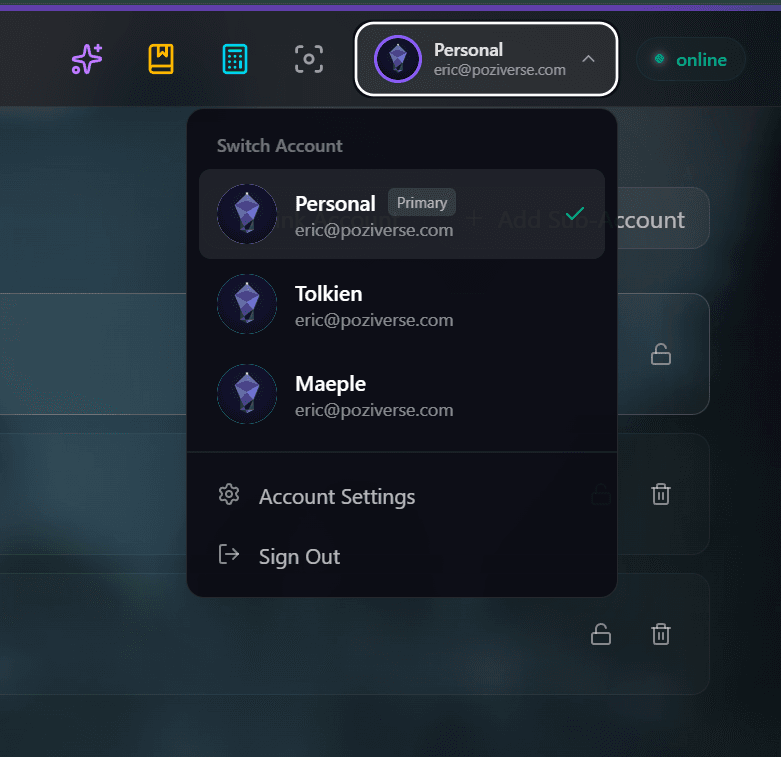
The AccountPicker component appears in the Companion popup. It has two variants:
- Full variant — shows account name, avatar, and a dropdown to switch
- Compact variant — a compact chip showing the current account, tap to switch
The active account is displayed in the popup header so you always know where a capture will go before you save.
Open the popup
Click the Glassy icon or press your popup shortcut.
Check the active account
Look at the popup header — it shows the currently selected account name.
Switch accounts
Click the account picker and select a different account from the list. The switch is instant — no re-authentication needed.
Capturing to a specific account
Select the target account
Use the account picker to choose where the capture should go.
Capture normally
Trigger your capture (full page, selection, screenshot, etc.). The capture is routed to the selected account.
Confirm via toast
After saving, a toast notification says “Saved to (account name)” — confirming which account received the capture.
Account-scoped caches
When you switch accounts, the extension invalidates account-scoped caches — specifically, collections and tags. This ensures:
- The tag autocomplete shows tags from the selected account, not the previous one
- The collection dropdown shows collections from the selected account
- You don’t accidentally apply a tag that doesn’t exist in the target account
This happens automatically. You don’t need to manually refresh anything.
Pre-login server selection
If you use multiple Glassy servers (not just multiple accounts on the same server), the login card includes a server selector before you sign in. Choose the server, then authenticate. This is useful if you have accounts on both app.glassy.fyi and a self-hosted instance.
Duplicate handling across accounts
If you capture a URL that already exists in the selected account, Glassy returns a 409 Conflict and merges the new capture’s note and tags into the existing entry. The conflict message now mentions the selected account name, so you know which library the duplicate was found in.
SSRF guard
The extension includes an isUnsavableUrl() guard that mirrors the server’s SSRF protection. Internal/private IP addresses and localhost URLs (unless you’re on a self-hosted instance) are blocked at the extension level before they ever reach the server.
What’s next?
You’ve completed the Glassy Capture track. Explore:
- Local AI — how AI runs in your browser and when cloud takes over
- Self-Hosting — run Glassy on your own server
- Back to Getting Started for anything you missed